Apidog Docs
πŸ‡ΊπŸ‡Έ English
  • πŸ‡ΊπŸ‡Έ English
  • πŸ‡―πŸ‡΅ ζ—₯本θͺž
HomeLearning Center
Support CenterAPI ReferencesDownloadChangelog
HomeLearning Center
Support CenterAPI ReferencesDownloadChangelog
Discord Community
Slack Community
X / Twitter
πŸ‡ΊπŸ‡Έ English
  • πŸ‡ΊπŸ‡Έ English
  • πŸ‡―πŸ‡΅ ζ—₯本θͺž
πŸ‡ΊπŸ‡Έ English
  • πŸ‡ΊπŸ‡Έ English
  • πŸ‡―πŸ‡΅ ζ—₯本θͺž
  1. Apidog CLI
  • Apidog Learning Center
  • Getting Started
    • Introduction to Apidog
    • Basic Concepts in Apidog
    • Navigating Apidog
    • Quick Start
      • Overview
      • Creating an Endpoint
      • Making a Request
      • Adding an Assertion
      • Creating Test Scenarios
      • Sharing API Documentation
      • Explore More
    • Migration to Apidog
      • Overview
      • Manual Import
      • Scheduled Import (Bind Data Sources)
      • Import Options
      • Export Data
      • Import From
        • Import from Postman
        • Import OpenAPI Spec
        • Import cURL
        • Import Markdowns
        • Import from Insomnia
        • Import from apiDoc
        • Import .har File
        • Import WSDL
  • Design APIs
    • Overview
    • Create a New API Project
    • Endpoint Basics
    • APl Design Guidelines
    • Module
    • Configure Multiple Request Body Examples
    • Components
    • Common Fields
    • Global Parameters
    • Endpoint Change History
    • Comments
    • Batch Endpoint Management
    • Custom Protocol API
    • Schemas
      • Overview
      • Create a New Schema
      • Build a Schema
      • Generate Schemas from JSON Etc
      • oneOf, allOf, anyOf
      • Using Discriminator
    • Security Schemes
      • Overview
      • Create a Security Scheme
      • Use the Security Scheme
      • Security Scheme in Online Documentation
    • Advanced Features
      • Custom Endpoint Fields
      • Associated Test Scenarios
      • Endpoint Status
      • Appearance of Parameter Lists
      • Endpoint Unique Identification
  • Develop and Debug APIs
    • Overview
    • Generating Requests
    • Sending Requests
    • Debugging Cases
    • Test Cases
    • Dynamic Values
    • Validating Responses
    • Design-First vs Request-First
    • Generating Code
    • Environments & Variables
      • Overview
      • Environment Management
      • Using Variables
    • Vault Secrets
      • Overview
      • HashiCorp Vault
      • Azure Key Vault
      • AWS Secrets Manager
    • Pre and Post Processors
      • Assertion
      • Extract Variable
      • Wait
      • Overview
      • Using Scripts
        • Overview
        • Pre Processor Scripts
        • Post Processor Scripts
        • Public Scripts
        • Postman Scripts Reference
        • Calling Other Programming Languages
        • Using JS Libraries
        • Visualizing Responses
        • Script Examples
          • Assertion Scripts
          • Using Variables
          • Modifying Requests
          • Other Examples
      • Database Operations
        • Overview
        • MySQL
        • MongoDB
        • Redis
        • Oracle Client
    • Dynamic Values Modules
  • Mock API Data
    • Overview
    • Smart Mock
    • Custom Mock
    • Mock Priority Sequence
    • Mock Scripts
    • Cloud Mock
    • Self-Hosted Runner Mock
    • Mock Language (Locales)
  • API Testing
    • Overview
    • Test Scenarios
      • Create a Test Scenario
      • Pass Data Between Requests
      • Flow Control Conditions
      • Sync Data from Endpoints and Endpoint Cases
      • Import Endpoints and Endpoint Cases from Other Projects
      • Export Test Scenarios
    • Run Test Scenarios
      • Run a Test Scenario
      • Run Test Scenarios in Batch
      • Manage Runtime Environment of APIs from Other Projects
      • Data-Driven Testing
      • Scheduled Tasks
    • Test Suite
      • Overview
      • Create A Test Suite
      • Orchestrate Test Suite
      • Run Test Suites Locally
      • Run Test Suites Via CLI
      • Scheduled tasks
    • Test Reports
      • Test Reports
    • Test APIs
      • Integration Testing
      • Performance Testing
      • End-to-End Testing
      • Regression Testing
      • Contract Testing
    • Apidog CLI
      • Overview
      • Installing and Running Apidog CLI
      • Apidog CLI Options
    • CI CD
      • Overview
      • Integrate with Gitlab
      • Integrate with Jenkins
      • Trigger Test by Git Commit
      • Integrate with Github Actions
  • Publish API Docs
    • Overview
    • API Technologies Supported
    • Quick Share
    • Viewing API Documentation
    • Markdown Documentation
    • Publishing Documentation Sites
    • Custom Login Page
    • Custom Layouts
    • Custom CSS, JavaScript, HTML
    • Custom Domain
    • LLM-Friendly Features
    • SEO Settings
    • Advanced Settings
      • Documentation Search
      • CORS Proxy
      • Integrating Google Analytics with Doc Sites
      • Folder Tree Settings
      • Visibility Settings
      • Embedding Values in Document URLs
    • API Versions
      • Overview
      • Creating API Versions
      • Publishing API Versions
      • Sharing Endpoints with API Versions
  • Send Requests
    • Overview
    • SSE Debugging
    • MCP Client
    • Socket.IO
    • WebSocket
    • Webhook
    • SOAP or WebService
    • GraphQL
    • gRPC
    • Use Request Proxy Agents for Debugging
    • Create Requests
      • Request History
      • Request Basics
      • Parameters and Body
      • Request Headers
      • Request Settings
      • Debug Requests
      • Saving Requests as Endpoints
      • HTTP/2
    • Response and Cookies
      • Viewing API Responses
      • Managing Cookies
      • Overview
    • Authentication and Authorization
      • Overview
      • CA and Client Certificates
      • Authorization Types
      • Digest Auth
      • OAuth 1.0
      • OAuth 2.0
      • Hawk Authentication
      • Kerberos
      • NTLM
      • Akamai EdgeGrid
  • Branches
    • Overview
    • Creating a Sprint Branch
    • Testing APIs in a Branch
    • Designing APIs in a Branch
    • Merging Sprint Branches
    • Managing Sprint Branches
  • AI Features
    • Overview
    • Enabling AI Features
    • Generating Test Cases
    • Modifying Schemas with AI
    • Endpoint Compliance Check
    • API Documentation Completeness Check
    • AI-Powered Field Naming
    • FAQs
  • Apidog MCP Server
    • Overview
    • Connect Apidog Project to AI
    • Connect Published Documentation to AI
    • Connect OpenAPI Files to AI
  • Best Practices
    • Handling API Signatures
    • Accessing OAuth 2.0 Protected APIs
    • Collaboration Workflow
    • Managing Authentication State
  • Offline Space
    • Overview
  • Administration
    • Managing Teams
      • Managing Teams
      • Managing Team Members
      • Member Roles & Permission Settings
      • Team Activities
      • Team Resources
        • General Runner
        • Team Variables
        • Request Proxy Agent
      • Real-time Collaborations
        • Team Collaboration
    • Onboarding Checklist
      • Basic Concepts
      • Onboarding Guide
    • Managing Projects
      • Managing Projects
      • Managing Project Members
      • Notification Settings
      • Project Resources
        • Database Connection
        • Git Connection
    • Managing Organization
      • Managing Organization
      • Single Sign-On (SSO)
        • SSO Overview
        • Configuring Microsoft Entra ID
        • Configuring Okta
        • Configuring SSO for an Organization
        • Managing User Accounts
        • Mapping Groups to Teams
      • SCIM Provisioning
        • Introduction to SCIM Provisioning
        • Microsoft Entra ID
        • Okta
      • Plans Management
        • Billing Managers in Organizations
      • Organization Resources
        • Self-Hosted Runner
  • Billing
    • Overview
    • Credits
    • Alternative Payment Methods
    • Managing Subscriptions
    • Upgrading Your Plan
    • Moving Paid Teams to Organizations
  • Data & Security
    • Data Storage and Security
    • User Data Privacy and Security
    • Request Routing and Data Security
  • Add-ons
    • API Hub
    • Apidog Intellij IDEA Plugin
    • Browser Extension
      • Chrome
      • Microsoft Edge
    • Request Proxy
      • Request Proxy in Web
      • Request Proxy in Shared Docs
      • Request Proxy in Client
  • Account & Preferences
    • Account Settings
    • Generating OpenAPI Access Token
    • Notification
    • Language Settings
    • Hot Keys
    • Network Proxy Configuration
    • Backing Up Data
    • Updating Apidog
    • Deleting Account
    • Experimental Features
  • References
    • API Design-First Approach
    • Apidog OpenAPI Specificaiton Extensions
    • JSONPath
    • XPath
    • Regular Expressions
    • JSON Schema
    • CSV File Format
    • Installing Java Environment
    • Runner Deployment Environment
    • Apidog flavored Markdown
  • Apidog Europe
    • Apidog Europe
  • Support Center
HomeLearning Center
Support CenterAPI ReferencesDownloadChangelog
HomeLearning Center
Support CenterAPI ReferencesDownloadChangelog
Discord Community
Slack Community
X / Twitter
πŸ‡ΊπŸ‡Έ English
  • πŸ‡ΊπŸ‡Έ English
  • πŸ‡―πŸ‡΅ ζ—₯本θͺž
πŸ‡ΊπŸ‡Έ English
  • πŸ‡ΊπŸ‡Έ English
  • πŸ‡―πŸ‡΅ ζ—₯本θͺž
  1. Apidog CLI

Installing and Running Apidog CLI

Apidog CLI is designed to run Apidog test scenarios in the command line. To get started using Apidog CLI, install Node.js, then Apidog CLI. Then you can run your test scenarios.

Prerequisites#

Node.js v16 or later installed on your system
npm (Node Package Manager) installed
An Apidog account with test scenarios created

Installing Apidog CLI#

Apidog CLI is built on Node.js. To run Apidog CLI, please install Node.js before using it.
The Apidog CLI relies on Node.js version v16 or later.
Install Apidog CLI from npm globally on your system, enabling you to run it from anywhere:
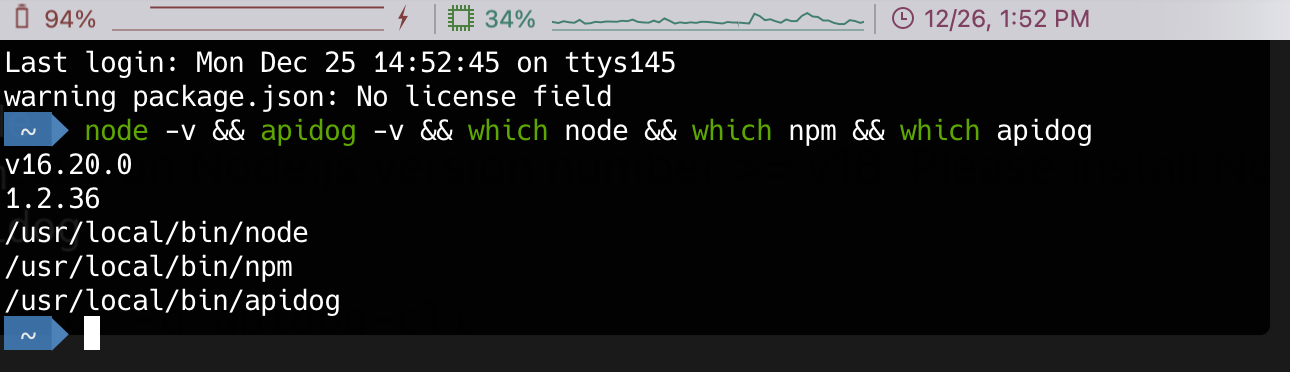
Here are some commands to verify if Apidog CLI is installed successfully.
If installed successfully, it will directly print the version number and installation path after executing commands above.
Terminal output showing successful Apidog CLI installation with version numbers and paths

Updating Apidog CLI#

Use the command below to upgrade Apidog CLI.

Running Apidog CLI#

To run test scenarios using the Apidog CLI, you first need to create and orchestrate a test scenario. Then, you can run the test scenario from the command line using the Apidog CLI, just like running it in the visual interface, and get a test report.
The Apidog CLI supports two ways of running:
1.
Running with online data: This is suitable for live scenarios.
2.
Running with exported test scenarios: This is suitable for offline scenarios.

Run Online Data in Real Time#

1
In a test scenario, switch to the CI/CD tab.
CI/CD tab in Apidog test scenario interface
2
Configure the environment, test data, iterations, delay, etc.
3
In the CI/CD provider section, select "Command line".
4
Click "Add access token" button and then "Generate token".
Learn more about access token.
5
Click the command to copy it.
6
Paste and run the command in the command line. And you'll get a test report in command line.
In Step 2, the configurations you set will automatically determine the options and values utilized in the CLI:
Environment: Maps to -e <environmentId>.
Test data: Maps to -d <testDataId>.
Iterations: Maps to -n <n>.
Delay: Maps to --delay-request <n>.
Environment/Global variables: If selectingExport current value and use it, you can find an export option below to export the current values of the environment/global variables from your project to a file. This affects--variables <path>. You will need to import this file onto the machine running the CLI and specify its path via--variables <path>. Learn more about differences between "Use initial value" and "Export current value and use it" here.
If your test scenario also uses locally stored database connection configurations, the product interface will guide you to export these configurations to a local file, which affects --database-connection <path>. You will then need to import this exported file onto the machine running the CLI and specify its path in--database-connection <path>.

Run Export Data#

1
In a test scenario, switch to the CI/CD tab.
2
Configure the environment, test data, iterations, delay, etc.
3
In the CI/CD provider, select "Command line" and then switch to "Run exported data".
Run exported data option in CI/CD configuration
4
Export the test scenario as a JSON file.
5
Copy the command displayed below.
6
Paste and run the command in the command line. You will get a command line test report.
The settings in step 2 (such as "Run Online Data") will automatically affect the options and values used in the CLI below. Note that when running in this way, the environment/global variables use the values from the file exported along with the test scenario. Learn more here.

CLI Test Report#

After running the CLI, you will receive a command-line test report that includes execution statistics for test scenarios and validation and assertions for failed requests.
Example CLI test report showing test results and statistics
You can also find the /apidog-reports/ directory in the folder where you ran the CLI. This directory contains the CLI test report in HTML format.

Options#

Apidog CLI provides a rich set of options to customize a collection run. Learn more at Apidog CLI Options.

Using Apidog CLI with CI/CD#

Apidog CLI supports integration with various pipeline tools, such as Jenkins, GitLab, GitHub Actions, and more. Learn more about integrating CI/CD.
Modified atΒ 2026-01-20 10:07:21
Previous
Overview
Next
Apidog CLI Options
Built with